How to create a Discord application and get your bot token
Every Discord bot starts the same way. You create an application in Discord's Developer Portal, and Discord gives you a token for it. This guide shows each step with a screenshot. Steps 1 to 4 apply to any bot. Steps 5 and 6 bring the bot online with Ruination Bots, which hosts it under your own name and avatar without code.
Last checked in October 2026.Watch the setup
4 minutesBefore you start
Three things, and nothing else.
Create your bot and get its token
Six steps, in order. Keep the Developer Portal open in a second tab and follow along.
- 1Step 1
Create an application
Open the Discord Developer Portal and choose New Application. Give it a name, agree to the developer terms, then confirm. The name you pick here becomes your bot's name and can be changed at any time.
Open Developer PortalOne application is one bot. If you want a second bot later, you create a second application.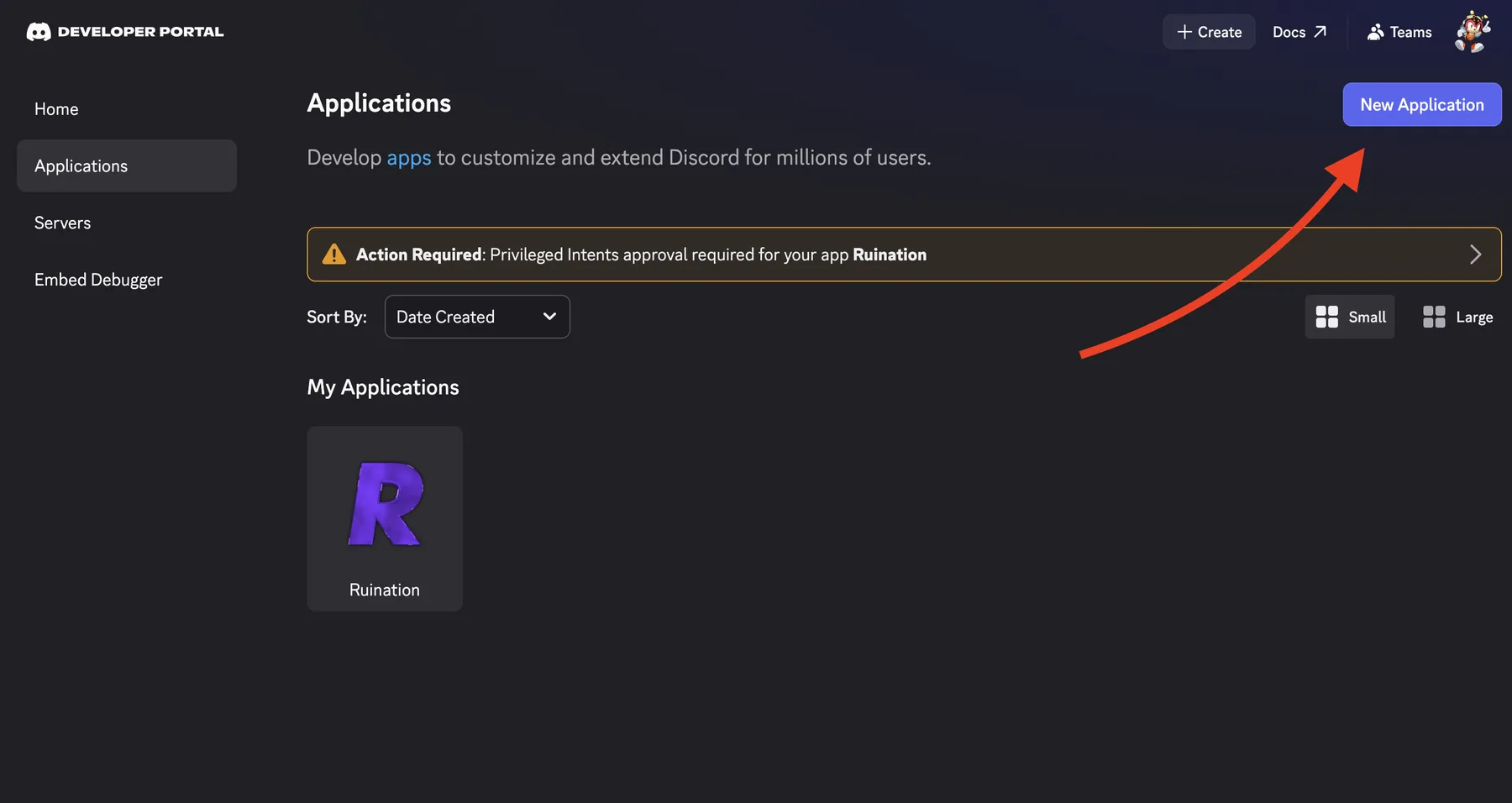
- 2Step 2
Open the Bot tab
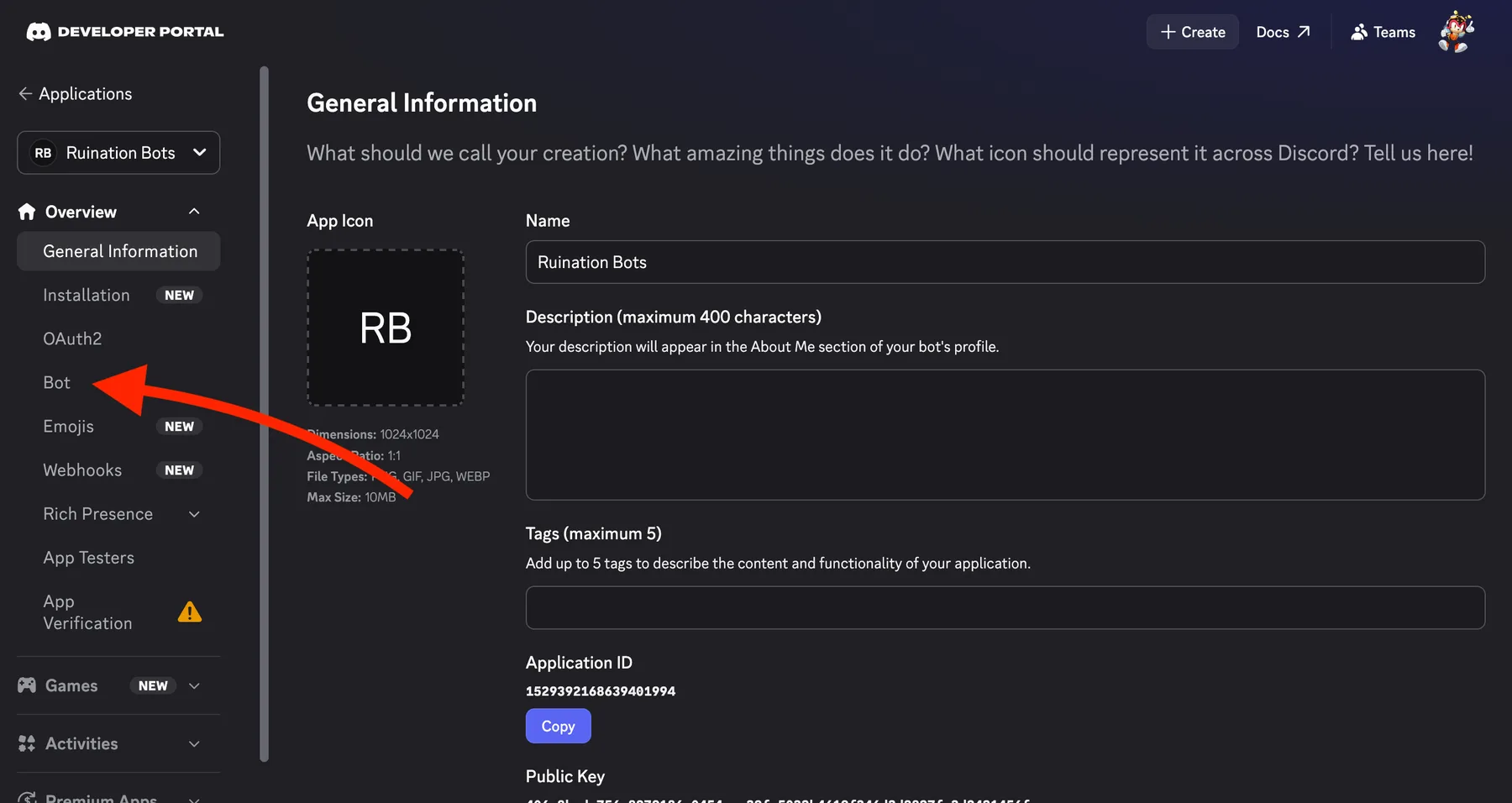
In the left menu of your new application, select Bot. Discord has already created the bot user for you. This is where you set its display name and avatar, which is what your members will see in the member list.
- 3Step 3
Switch on both privileged intents
Scroll down to Privileged Gateway Intents and turn on Server Members Intent and Message Content Intent, then press Save Changes. Without both of these, Discord won't let your bot connect and it will never come online.
Leave Presence Intent off. We don't use it, and it only shares data you don't need to hand over.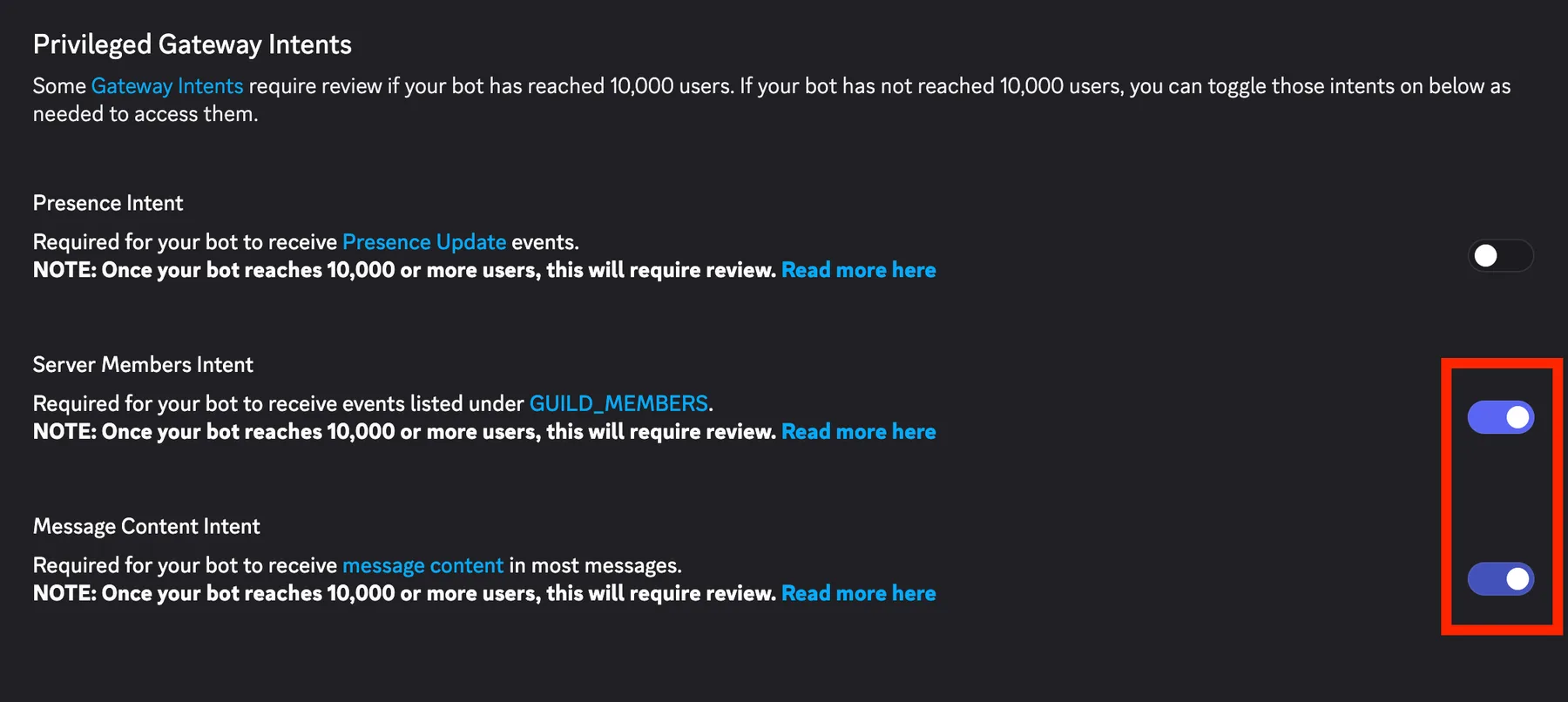
- 4Step 4
Reset and copy the token
Still on the Bot tab, press Reset Token and confirm. Discord shows the token exactly once, so copy it right away and keep it somewhere safe until the next step. If you lose it, reset it again and use the new one.
The token is the password to your bot. Never post it in a screenshot, a support channel or a public repository.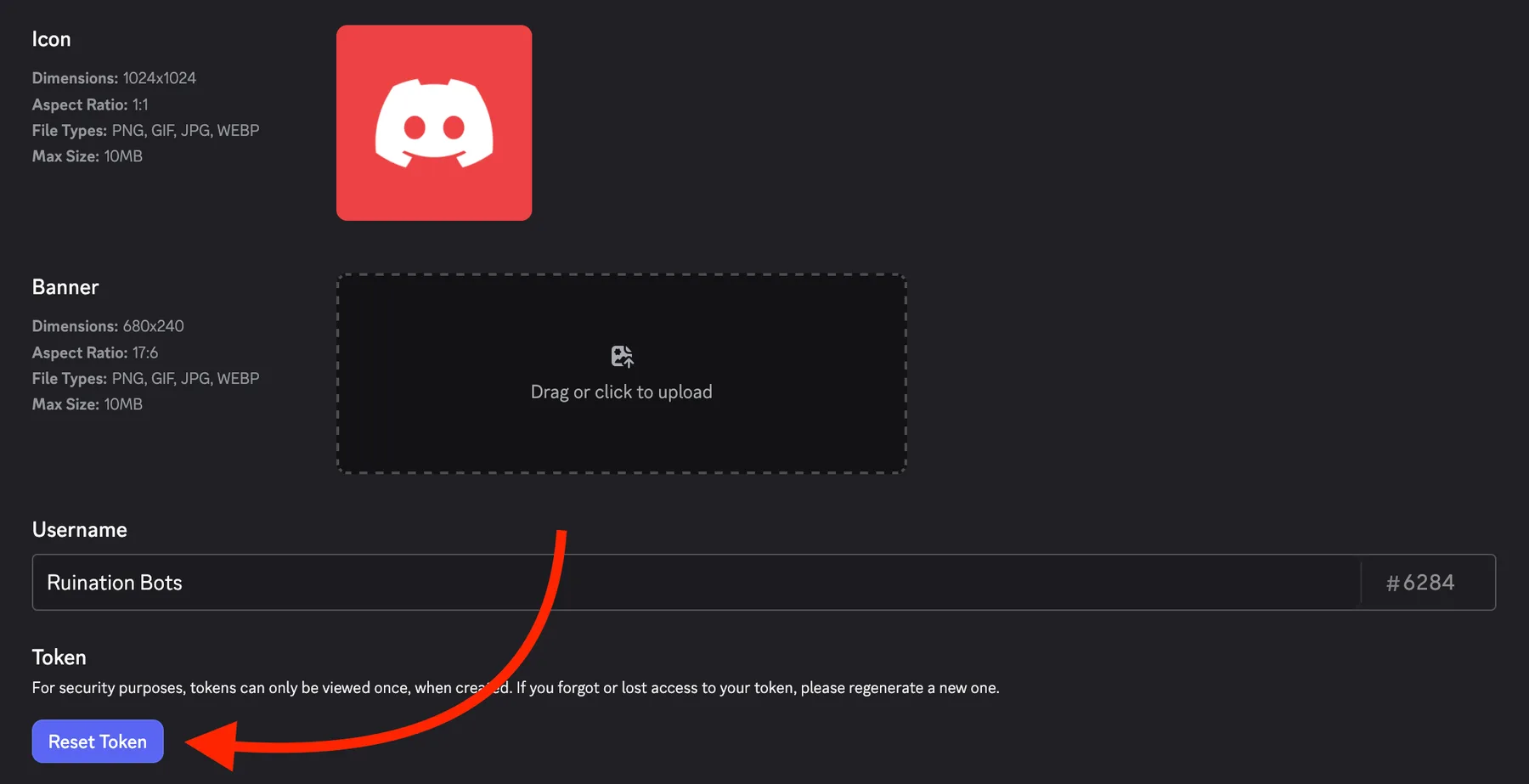
- 5Step 5
Paste the token in the dashboard
Open Add a bot in the Ruination Bots dashboard and paste the token you copied. We encrypt the token as soon as it reaches us, and it is never shown again.
Add a bot - 6Step 6
Invite the bot to your server
The next step of Add a bot lists the servers your bot is in. A new bot is in none, so choose Invite your bot to a server. Discord opens with the Administrator permission already selected. Pick your server and confirm, then return to the dashboard and select the server. Finish the remaining steps and your bot starts within a few seconds.
Administrator isn't optional. The bot checks for it the moment it connects and refuses to start without it, so a hand-picked set of permissions won't work. Its role also has to sit above every role it's meant to manage.
What your bot needs to work
Two intents and one permission. Between them, they explain almost every bot that never comes online.
Bring the bot online without code
Ruination Bots hosts your bot around the clock and gives it moderation, tickets, leveling and stream alerts from one dashboard. You get the whole product for 14 days without a card, once per account and once per Discord server. Afterwards the bot stops, nothing is charged and your setup is kept.
Common questions
The things people ask us most, answered properly.
Is my bot token safe with you?
Yes. We encrypt your token before storing it, and it's never shown again anywhere in the dashboard, not even to you. You stay in control: resetting the token in the Discord Developer Portal instantly kills the copy we hold, and deleting the bot here wipes it from our side.
My bot won't come online. What's wrong?
Nine times out of ten, one of the two privileged intents is still switched off. Open your application in the Developer Portal, go to Bot, turn on Server Members Intent and Message Content Intent, press Save Changes, then restart the bot. If it still won't start, the token was probably reset after you added it, so paste the current one.
My server doesn't show up when I add the bot.
The list only shows servers the bot has already joined. Choose Invite your bot to a server, pick the server in Discord and confirm, then check again. One thing worth knowing: the list also shows servers where the bot only has Manage Server, but it needs Administrator to actually start, so leave Administrator selected while you're inviting it.
Does the bot really need Administrator?
Yes, and it's enforced rather than just recommended. Almost everything the bot does touches roles, channels or members, so a partial permission set would leave features quietly broken. The bot checks for Administrator the moment it connects and stops with an error instead of coming online if it's missing. The same check keeps running while it's live, so taking the permission away later puts the bot offline within seconds. Grant Administrator in the server, then start the bot again.
I reset my token by accident. What now?
Nothing is broken for good. Copy the new token from the Developer Portal, open your bot in the dashboard, and replace the token. The bot reconnects with the new one and everything you set up stays exactly as it was.
Can I run more than one bot?
Yes. Each bot is its own application in Discord with its own token, and each one gets its own setup here. Create a second application, follow the same steps, and add it from the dashboard.
My slash commands are missing in Discord.
Slash commands need the applications.commands scope on the invite link. If you invited the bot with only the bot scope, build the link again with both scopes and open it for the same server. New commands can also take a minute to show up, and restarting your Discord app usually speeds that along.
Can I use a bot I already built myself?
Yes, as long as the application belongs to you. Add its token here and it runs on our side with our feature set. Don't run the same token somewhere else at the same time, though: Discord only allows one active connection per bot, so the two sessions will keep knocking each other offline.
What happens to my data if I remove a bot?
Deleting a bot removes its token and its whole setup from our systems, and the statistics tied to it go with it. If you want a copy first, you can export everything on your account before you delete it.
My bot passed 10,000 users and Discord wants me to justify its intents. What now?
That is a routine review, and there is a deadline attached. If it passes, the intents are revoked and your bot stops coming online. Do not switch the intents off: a bot hosted with us needs both to start. Write to support@ruination-bots.com and we will help you through the application.